
PC Gaming Optimization Guide: Stop Wasting Frames and Fix Your Performance Properly

Look, if your game is stuttering, it's not "just how it runs." It's either bad optimization—or your system is misconfigured. I've spent years in QA watching performance issues get stamped "Won't Fix," so here's the reality: you either fix it yourself, or you live with it.
This is a full-stack optimization guide. Not fluff. Not "turn shadows to low and hope." We're going under the hood and fixing the actual problems.
Section 1: Establish a Baseline (Stop Guessing)
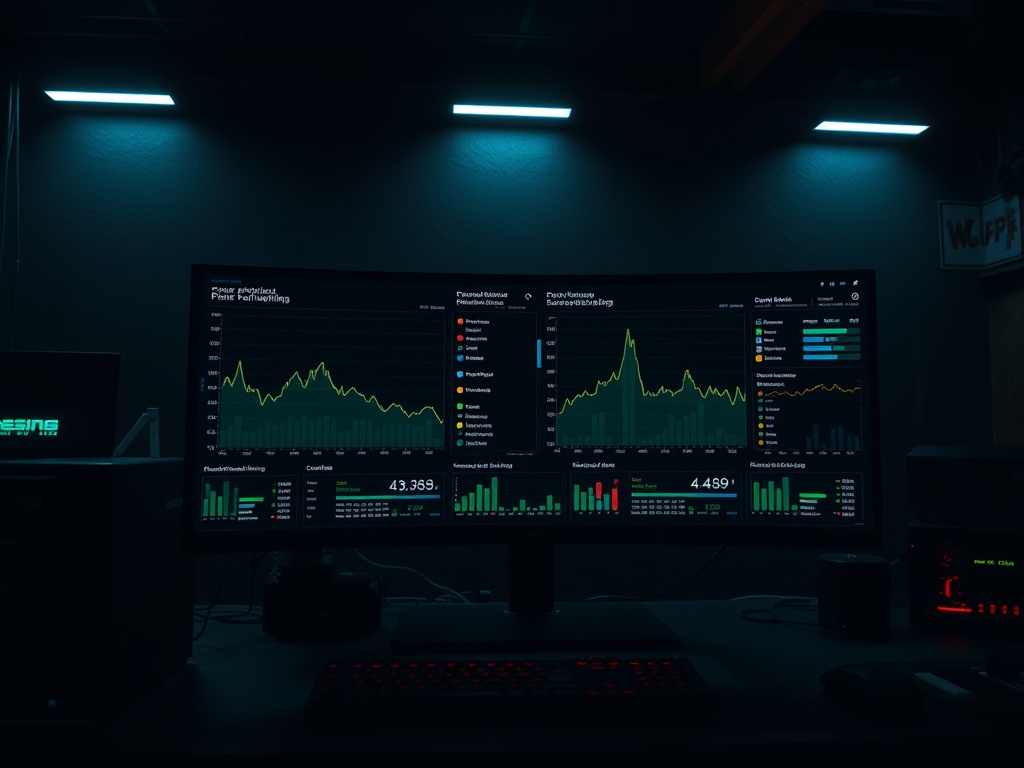
Real talk. If you don't measure performance, you're just guessing.
Before changing anything:
- Install MSI Afterburner + RivaTuner
- Track frame-time, not just FPS
- Play a repeatable section for 5 minutes
You're looking for:
- Frame-time spikes (stutter)
- GPU usage consistency
- CPU thread bottlenecks
If your frame-time graph looks like a seismograph, that's your problem—not "low FPS."
Section 2: Kill Background Garbage
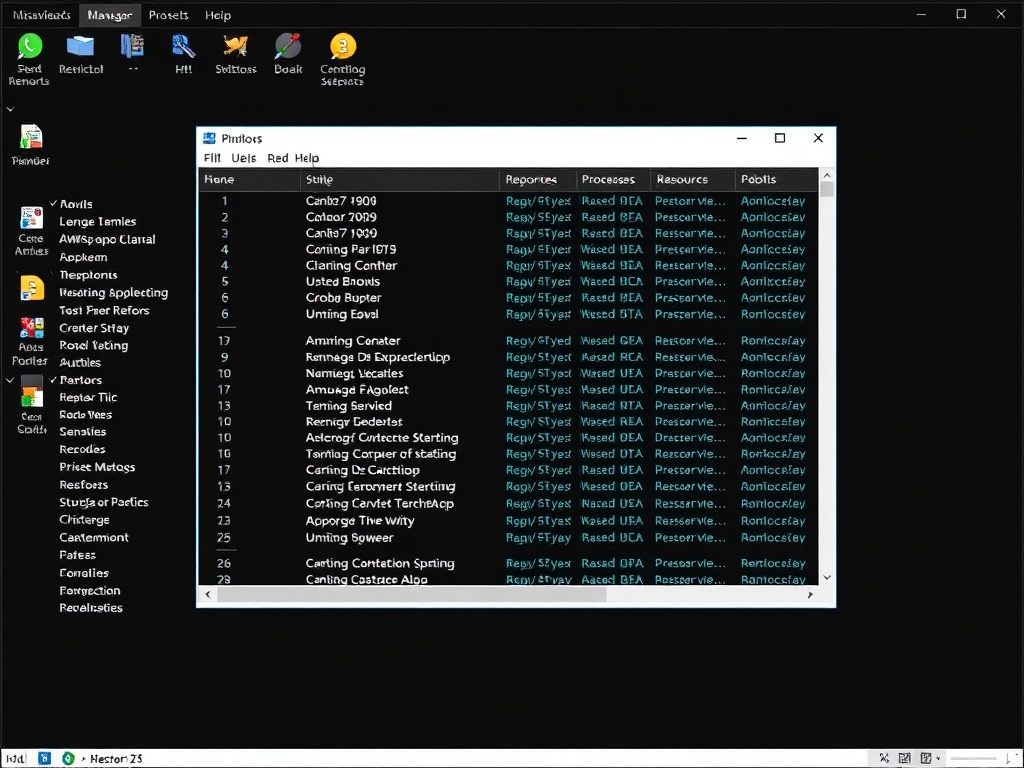
Let's look under the hood. Your PC isn't just running your game—it's running 30 other things you don't need.
- Disable startup apps
- Kill browser tabs (yes, they matter)
- Turn off overlays you don't use
Common offenders:
- Discord overlay
- RGB control software
- Game launchers stacking on top of each other
You're freeing CPU cycles. That matters more than people think.
Section 3: GPU Settings That Actually Matter
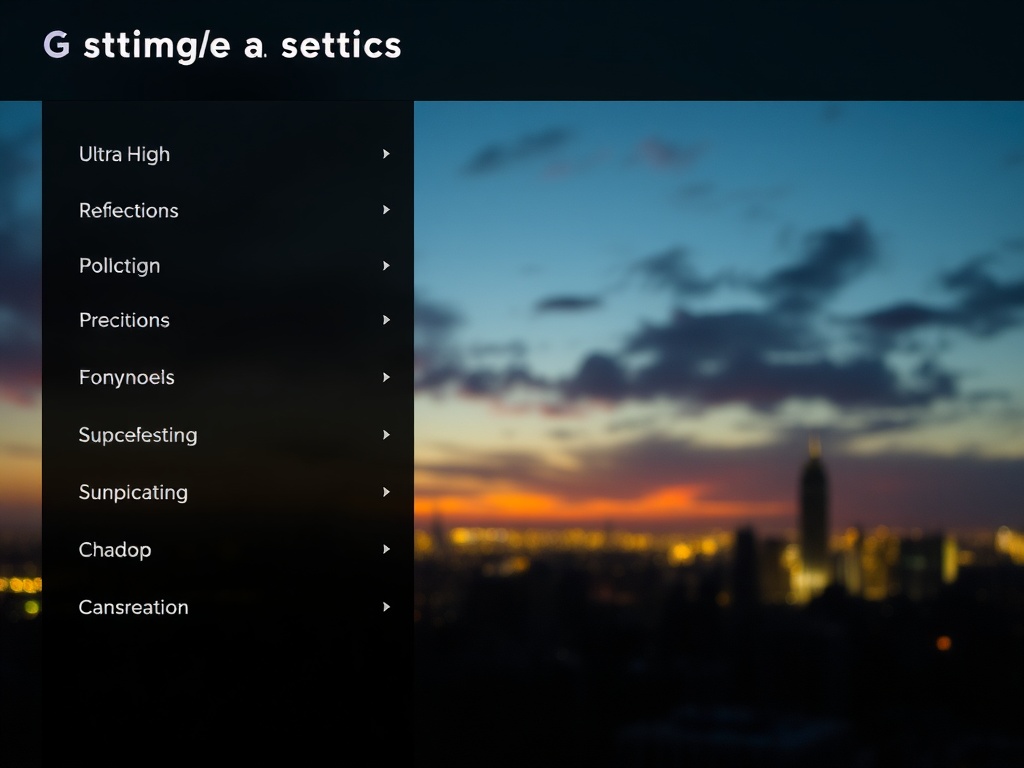
Most guides get this wrong. Not all settings are equal.
These hit performance hardest:
- Shadows
- Volumetric lighting
- Ray tracing
Minimal impact settings:
- Textures (if VRAM is sufficient)
- Anisotropic filtering
Rule:
Drop shadows first. Always.
Ray tracing? If you're not holding a stable 60 FPS, turn it off. It's not worth the frame-time spikes.
Section 4: CPU Bottlenecks (The Silent Killer)
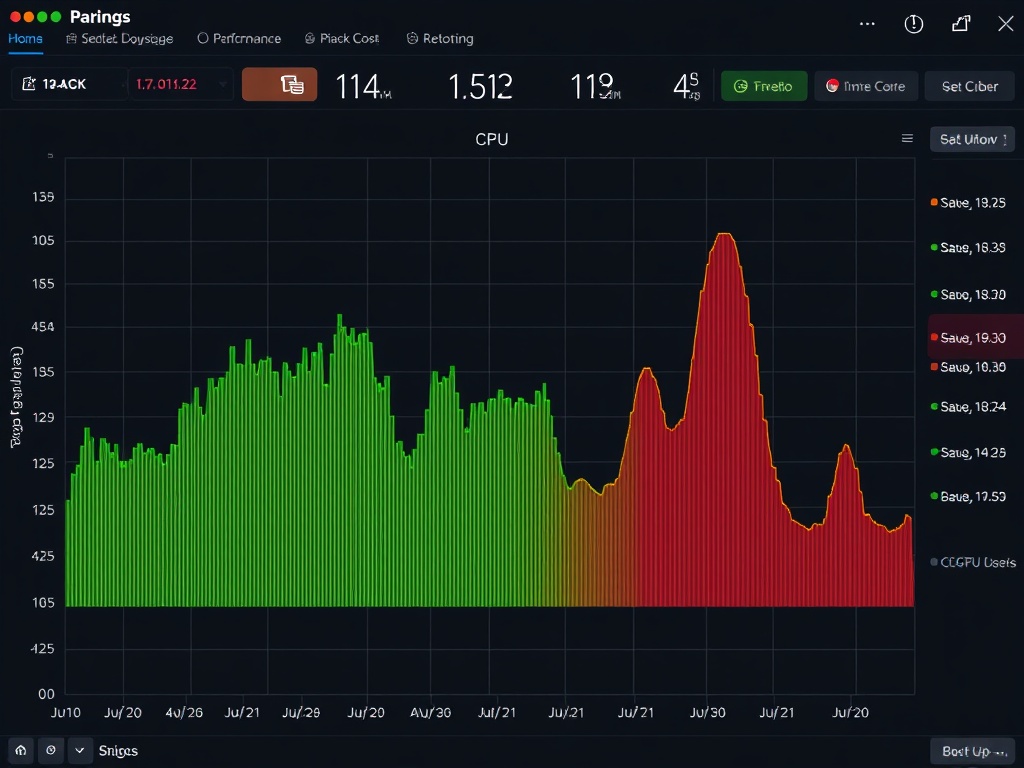
This is where most people get burned.
If your GPU usage is below 90% consistently, your CPU is the bottleneck.
Fixes:
- Lower crowd density / simulation settings
- Close background tasks (again)
- Update chipset drivers
Bad CPU optimization in games is common. You can't fix the engine—but you can reduce the load.
Section 5: Storage and Streaming Issues
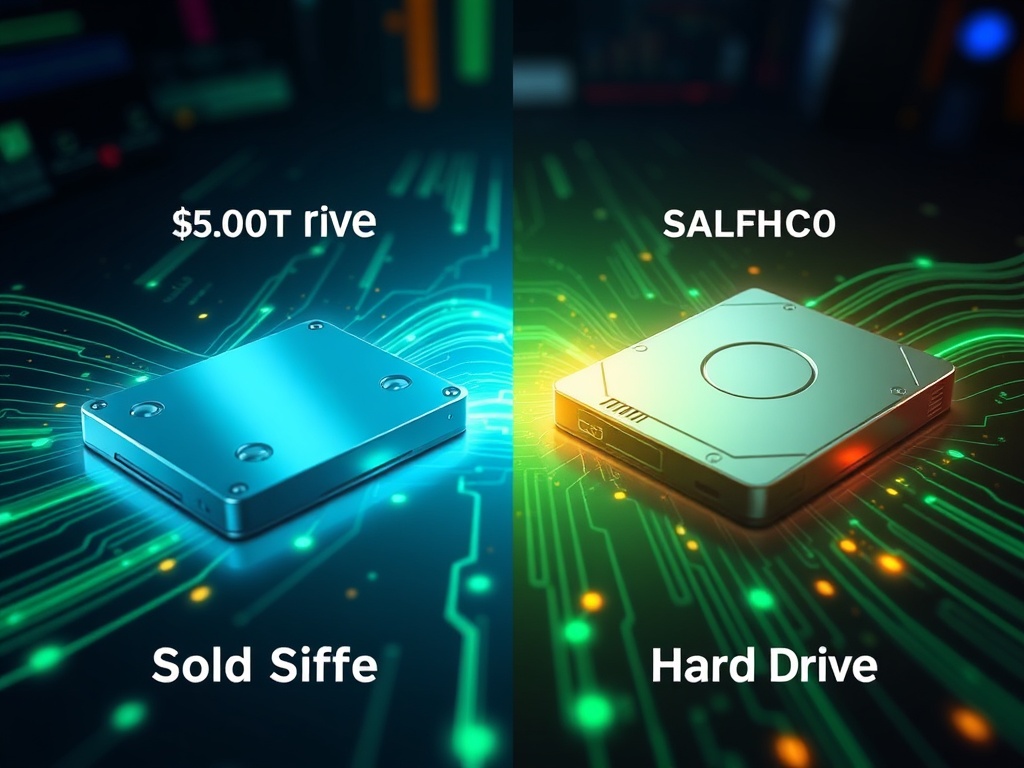
If you're still running games on an HDD, stop.
Modern games stream assets constantly. Slow drives cause:
- Texture pop-in
- Stutter during traversal
- Delayed loading zones
SSD isn't optional anymore. It's baseline.
Section 6: Drivers and Updates (But Not Blindly)
Yes, update your drivers—but don't blindly install every new one.
Sometimes new drivers introduce problems.
- Check patch notes
- Look for game-specific optimizations
- Roll back if performance drops
You're managing stability, not chasing version numbers.
Section 7: Steam Deck & Low-End Reality Check
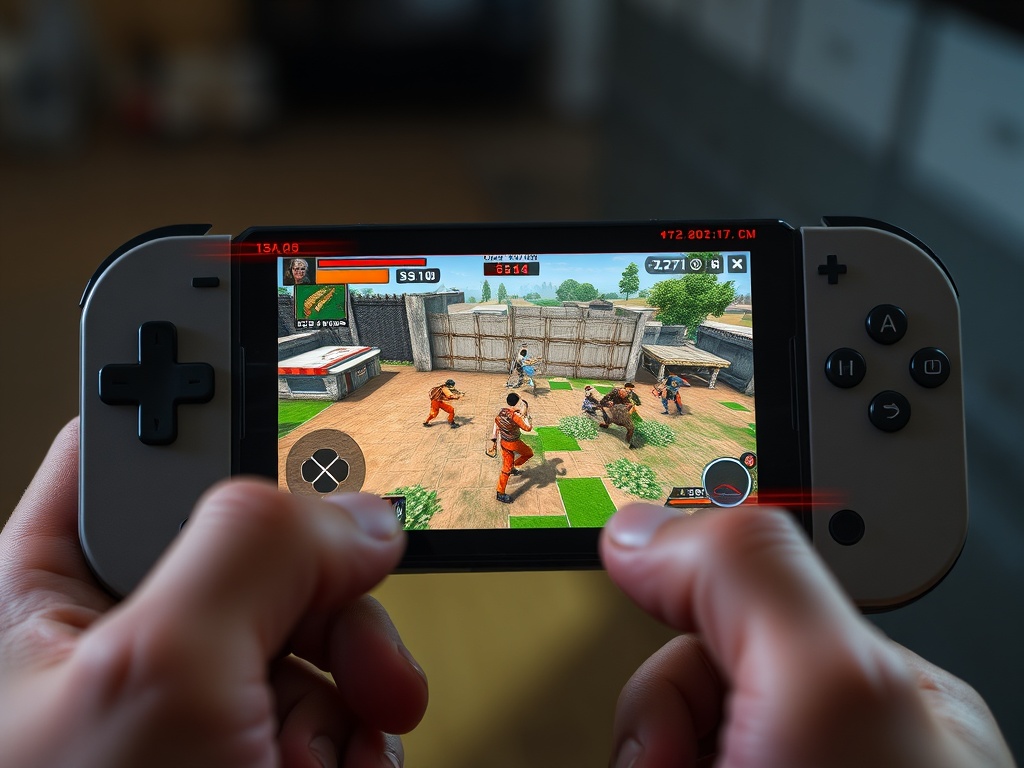
If a game doesn't run well on mid-range hardware or the Steam Deck, that's a red flag.
Settings strategy:
- Lock to 30 or 40 FPS for stability
- Use FSR/DLSS intelligently
- Prioritize frame-time consistency over peak FPS
Unstable 60 FPS feels worse than locked 40. Every time.
Section 8: The "Under the Hood" Checklist
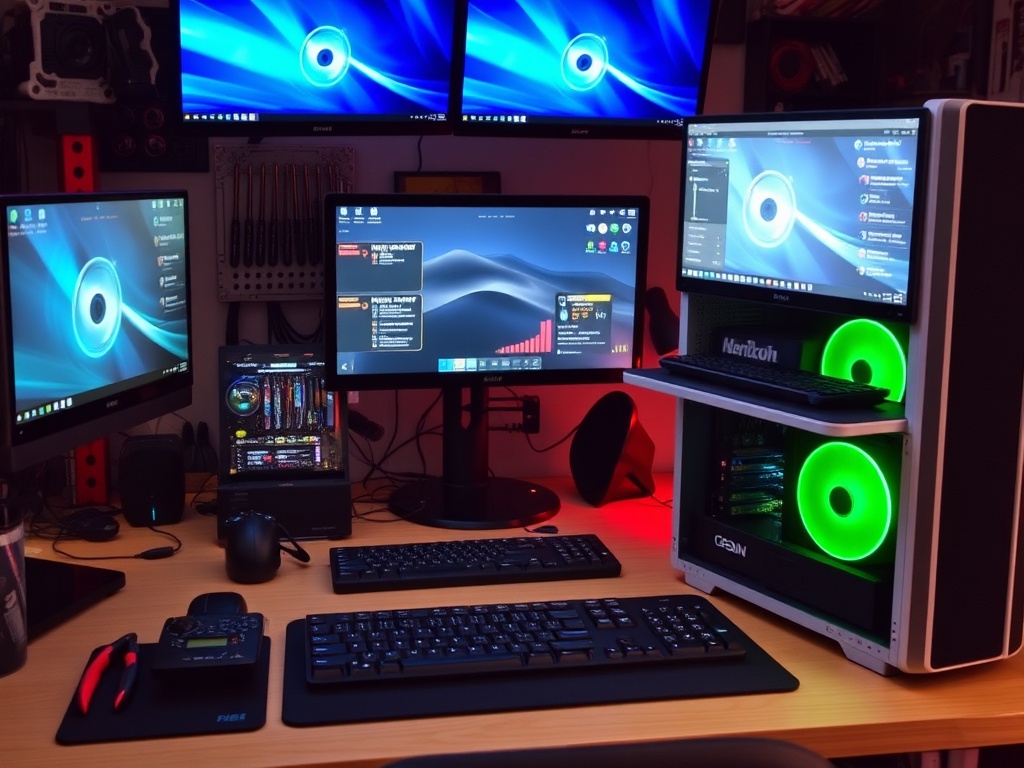
- Frame-time graph is stable
- GPU usage near 95%+
- No background CPU spikes
- Game installed on SSD
- Drivers verified stable
If all of this checks out and the game still runs poorly?
It's not you. It's the game.
The Verdict
Most "optimization guides" waste your time. This one doesn't.
Wallet-to-Value Ratio: Free performance gains vs hours of frustration? Easy win.
Final Call: Do this once, properly, and you stop chasing settings every time a new game drops.
Respect your time. Fix the system. Then hold developers accountable when their code still falls apart.