
The One Setting You Ignore That’s Killing Your Frame-Time Consistency

Quick Tip
Cap your FPS slightly below your system’s peak to dramatically improve frame-time consistency and eliminate stutter.
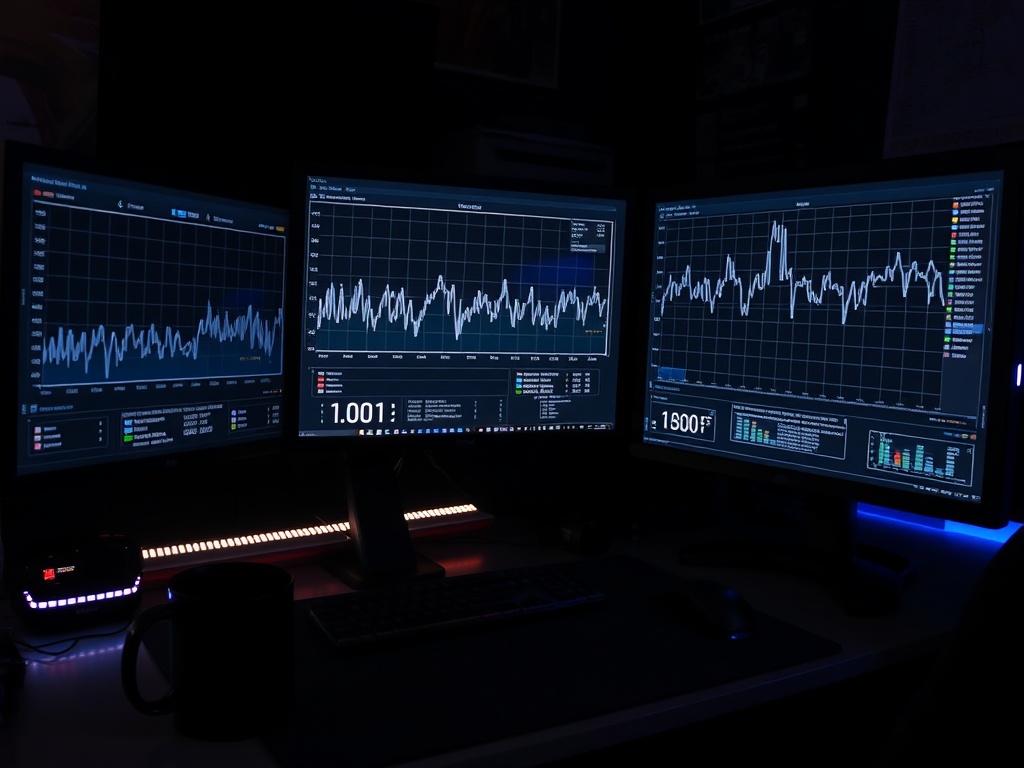
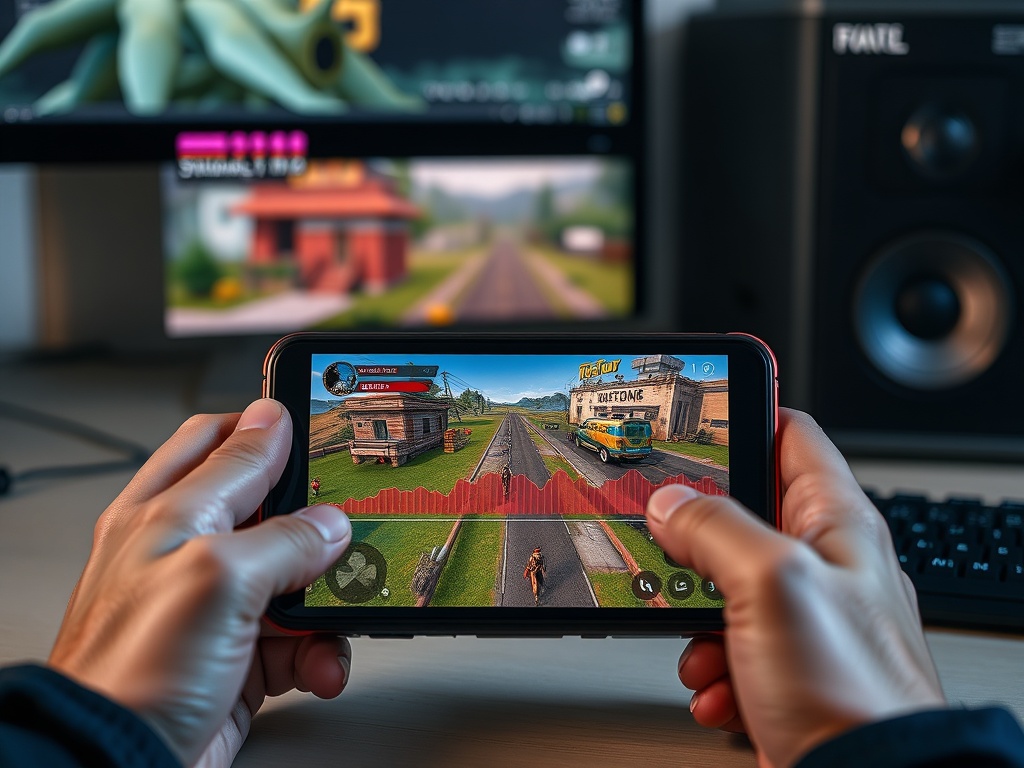
Look, I see this every week on the repair bench. Someone drops $2,000 on a rig, fires up a new release, and tells me it “runs fine” because the FPS counter says 90. Then I pull the frame-time graph and it looks like a seismograph during an earthquake.
This is the part most reviewers won’t tell you: average FPS is a useless metric if your frame pacing is garbage. You don’t feel averages. You feel spikes.
The Problem: You’re Chasing the Wrong Number
Real talk. The industry trained you to chase FPS because it’s easy to market. “120 FPS!” looks great on a box. But if your frame-times jump from 8ms to 25ms every few seconds, your experience feels like it’s hitching—even if the counter says you’re above 60.
That hitch? That’s inconsistent frame delivery. Your GPU is rendering frames unevenly, and your brain picks up the rhythm breaking. It’s subtle, but once you notice it, you can’t unsee it.
I’ve tested this across dozens of titles—same hardware, same settings, wildly different experiences depending on one thing people keep ignoring.

The Setting: Frame Rate Limit (Yes, Really)
Here’s the tip: stop letting your GPU run wild. Cap your frame rate.
I’m not talking about V-Sync as a blunt instrument. I’m talking about a controlled cap—either in-game or via a driver-level limiter.
When you leave your frame rate uncapped, your GPU constantly swings between workloads. One second it’s pushing 140 FPS in an empty hallway, the next it’s choking at 70 in a dense combat scene. That variance creates uneven frame-times.
By capping your frame rate slightly below your system’s peak stable output, you force consistency. Your GPU operates within a predictable range instead of oscillating like a broken thermostat.

How to Set It Properly (Without Guesswork)
Let’s keep this practical. Here’s how I do it in the lab:
- Step 1: Run the game uncapped for 10–15 minutes in a demanding area.
- Step 2: Identify your realistic high—not the peak spike, the consistent upper range.
- Step 3: Set your cap 10–15% below that number.
Example: if your system floats between 75–95 FPS, cap it at 75 or 80. Not 95. Not 120. You’re aiming for stability, not bragging rights.
On a 144Hz display, this might feel counterintuitive. Ignore the marketing. A locked 80 with clean frame-times feels better than a chaotic 120.
Under the Hood: Why This Works
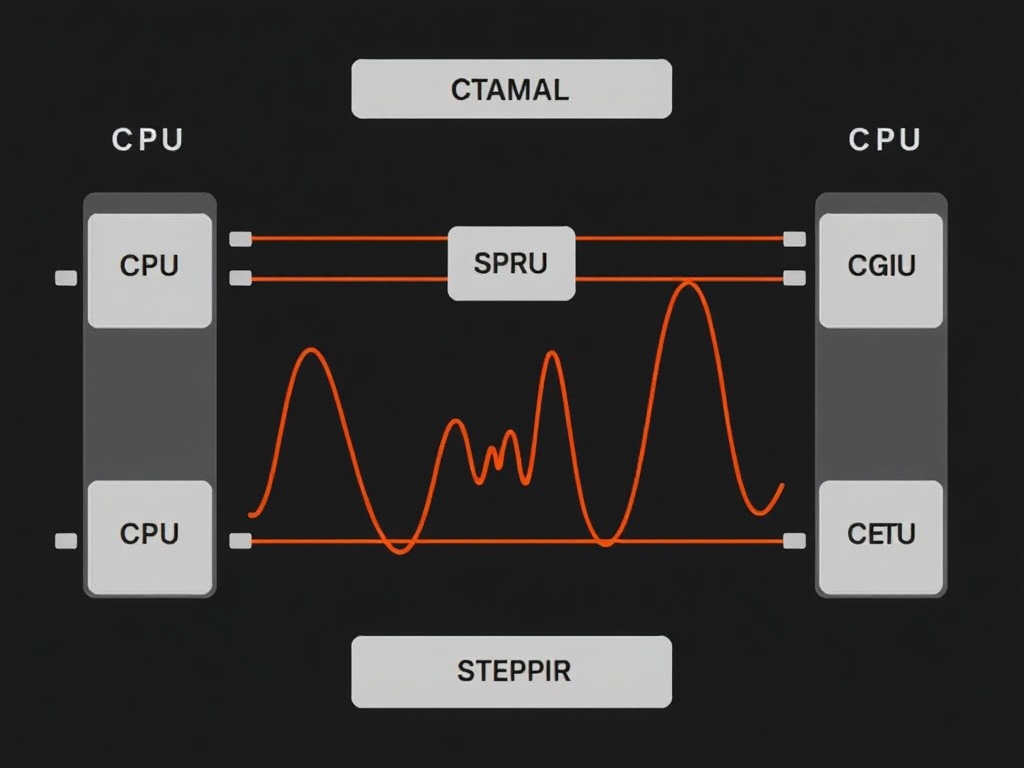
Let’s look under the hood. Your GPU pipeline isn’t just rendering frames—it’s syncing with the CPU, memory, and display refresh cycle. When you remove limits, you introduce volatility in scheduling.
Frame limiters act like a metronome. They regulate when frames are delivered, smoothing out the intervals. That consistency is what your eyes interpret as “smoothness.”
This also reduces:
- Frame-time spikes during asset streaming
- CPU bottleneck bursts in crowded scenes
- Thermal throttling over long sessions
In short, you’re trading peak numbers for stability. That’s a trade you should make every time.
Common Mistakes I See (Daily)
- Stacking limiters: Using V-Sync, in-game caps, and driver caps simultaneously. Pick one primary limiter.
- Matching refresh rate blindly: Just because you have 144Hz doesn’t mean your system can sustain 144 cleanly.
- Ignoring 1% lows: If your lows are bad, your experience is bad. Period.
- Believing “Ultra” equals better: Some ultra settings tank consistency for minimal visual gain.
I’ve had clients swear their system was “buttery smooth” until I showed them a frame-time capture. Data doesn’t lie.
Hardware Context (What I Tested On)
Tested across multiple configs in the lab:
- Ryzen 7 5800X + RTX 3080 + 32GB RAM
- Ryzen 5 5600 + RX 6700 XT + 16GB RAM
- Steam Deck (OLED) baseline testing
Result is consistent across all of them: capped frame rates produce tighter frame-time variance. Especially noticeable on mid-range hardware where CPU spikes are more pronounced.
The Reality Check
Look, this isn’t sexy advice. There’s no RGB lighting tied to it. No marketing department is going to sell you on “stable frame pacing.”
But if you actually play games instead of benchmarking menus, this is the difference between something that feels polished and something that feels off.
You don’t need a new GPU. You need to stop letting your current one behave like it’s unsupervised.
The Verdict
Do this: Cap your frame rate below your system’s peak and prioritize frame-time consistency over raw FPS.
Wallet-to-Value: Free fix. Immediate improvement. This is one of the highest ROI tweaks you can make without spending a cent.
Set the cap. Run a test. Watch your frame-time graph flatten out. That’s what “smooth” actually looks like.