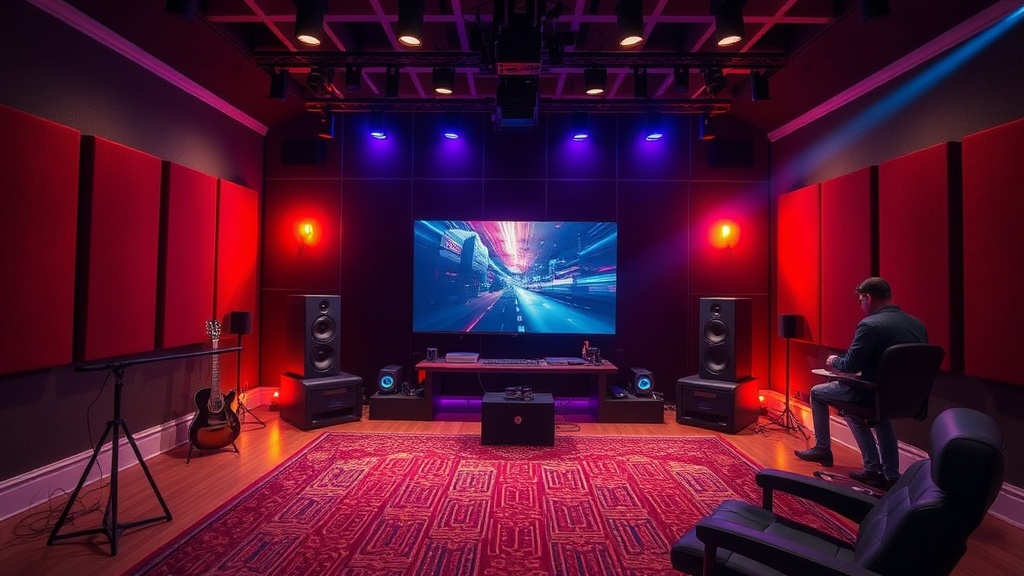
Build a Better Soundstage for Your Gaming Sessions

A player is mid-clutch in a tactical shooter when a footstep sounds behind a wall. They lean into the sound, expecting to pin the enemy's location, but the audio is a muddy, indistinguishable mess of white noise and bass. They realize too late that the enemy isn't just behind the wall—they're actually above them. This isn't a skill issue. It's a hardware and configuration failure.
Most gamers spend thousands on high-refresh monitors and top-tier GPUs, yet they play with mediocre audio that kills their competitive edge. This post breaks down how to build a high-fidelity soundstage through hardware selection, DAC/Amp integration, and software optimization. We're moving past the marketing hype of "7.1 Virtual Surround" and looking at what actually moves the needle for spatial awareness.
How Do I Choose the Right Gaming Headset?
You should prioritize frequency response accuracy and driver size over flashy RGB lighting or "gaming" branding. A good headset needs a flat or slightly boosted mid-range to ensure you can actually hear footsteps without being deafened by explosions.
The problem with most "gaming" headsets is the aggressive V-shaped sound profile. They crank the bass to make explosions feel "epic," but that heavy low-end frequency masking makes it impossible to hear the subtle high-frequency cues of a reload or a footstep. If you want a true soundstage, look at the technical specifications of the drivers rather than the box art.
I've seen too many people buy a $200 headset that sounds like a muffled mess because the software is trying to do too much heavy lifting. If you want precision, consider these three categories:
- Open-Back Headphones: These offer the widest soundstage and best spatial imaging, but they leak sound and won't work in a loud room. Think Sennheiser HD 600 series.
- Closed-Back Headphones: Better isolation and isolation from ambient noise, but the soundstage feels more "inside your head." Perfect for competitive play in noisy environments.
- IEMs (In-Ear Monitors): Increasingly popular in the pro scene because they offer incredible detail and zero fatigue.
Don't fall for the "Virtual 7.1" trap. Real spatial audio comes from the driver's ability to reproduce sound waves accurately, not a software algorithm trying to trick your brain into thinking a stereo signal is surround sound. It's a cheap trick that usually just results in muddy audio.
Does a DAC/Amp Actually Matter for Gaming?
A dedicated DAC (Digital-to-Analog Converter) and Amp matters if you are using high-impedance headphones or want to bypass the low-quality onboard audio of your motherboard.
Most mid-range motherboards have decent integrated audio, but they often suffer from electrical interference and high noise floors. If you hear a faint hiss or static when your PC is under load, your onboard audio is struggling. This is where a dedicated DAC comes in. It converts the digital signal from your game into an analog signal with much higher precision. An amplifier then ensures that the signal has enough voltage to drive your headphones to their full potential.
If you're running high-impedance studio headphones—like the Beyerdynamic DT 990 Pro—plugging them directly into a standard controller or a cheap motherboard jack will result in thin, quiet, and lifeless sound. You need the juice.
| Setup Type | Best For | Primary Benefit |
|---|---|---|
| USB Gaming Headset | Convenience/Plug-and-Play | Built-in sound processing |
| XLR Microphone/Audio Setup | Professional Streaming/Recording | Highest possible fidelity |
| DAC/Amp + Studio Headphones | Competitive Gaming/Audiophile Listening | Precision imaging and wide soundstage |
A quick note on USB headsets: they essentially act as their own sound card. While this bypasses your motherboard's audio, you're still at the mercy of the headset's internal components. If you want real control, go the external DAC route. It's a more stable way to manage your audio signal-to-noise ratio.
How Can I Optimize My Audio for Competitive Play?
To optimize audio, you must disable all "enhancement" software and use a high-quality, low-latency driver setup. Most of the "features" in Windows or your headset's software are actually detrimental to spatial accuracy.
Here is the checklist I use when I'm auditing a setup for a client:
- Disable Windows Sonic/Dolby Atmos: While these can be decent for movies, they often introduce latency and artificial processing that messes with your ability to judge distance in games like Apex Legends or CS2.
- Check Sample Rates: Go to your Sound Control Panel and ensure your output is set to at least 24-bit, 48kHz. Going higher (like 192kHz) rarely helps in gaming and can sometimes cause compatibility issues with certain game engines.
- Turn Off "Loudness Equalization": This is a common trick to make quiet sounds louder, but it destroys dynamic range. You'll hear the footsteps, sure, but you'll also get your ears blasted when a grenade goes off.
- Match Your Hardware to the Game: If you're playing a game with a highly optimized spatial engine (like those using Dolby Atmos for Headphones or similar tech), let the game handle the processing rather than your Windows settings.
I've spent way too many hours fixing broken audio pipelines because a user tried to stack three different "enhancement" layers on top of each other. You'll end up with a signal that is completely processed into oblivion. The goal is a clean, raw signal that your brain can interpret without the software "helping" you too much.
If you find that your audio is still feeling "small" or "narrow," you might be facing a bottleneck elsewhere. Often, a lack of spatial clarity is actually a symptom of poor CPU headroom or frame-time instability, which can cause micro-stutters in the audio stream. If your audio is popping or crackling, check out my guide on how to optimize your PC games for stable FPS, as audio desync is often a side effect of poor frame timing.
The reality is that a "gaming headset" is a marketing term. A real high-fidelity soundstage is built through a combination of high-quality drivers, a clean DAC, and a lack of unnecessary software interference. Stop looking for the "pro gamer" badge and start looking at the frequency response graphs. It's the only way to actually hear the game for what it is.
Steps
- 1
Check Your Hardware Connections
- 2
Disable Virtual Surround Sound in Windows
- 3
Calibrate Your Ears with Frequency Tests
- 4
Adjust In-Game Audio Settings