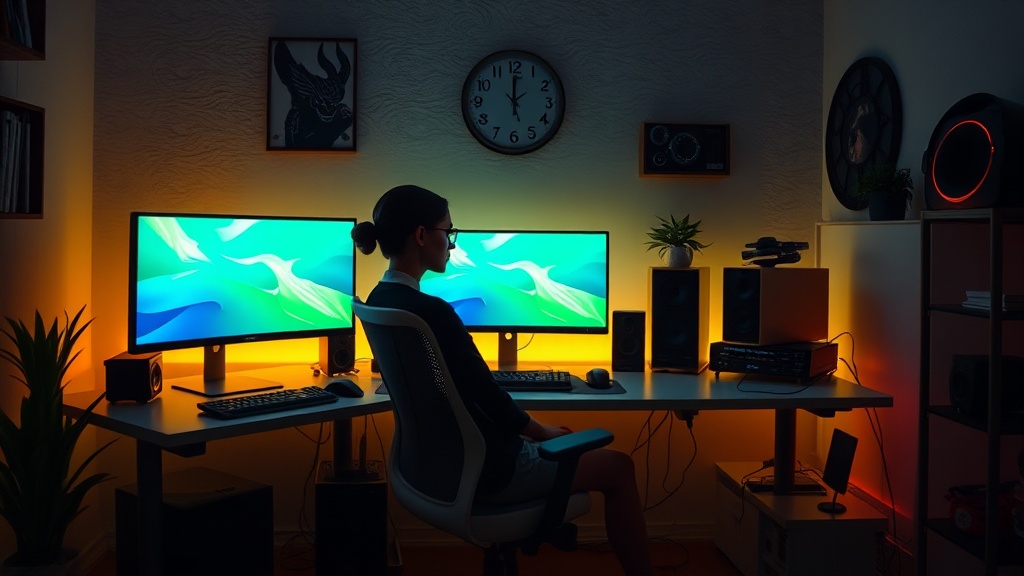
Leveling Up Your Digital Sanctuary: Designing the Perfect Ergonomic Battlestation

This guide provides the technical specifications and structural requirements necessary to build a high-performance, ergonomic gaming environment that prioritizes long-term physical health and hardware efficiency. You will learn how to optimize your seating, desk geometry, peripheral placement, and environmental controls to prevent repetitive strain injuries and maximize focus.
The Foundation: Seating and Spinal Alignment
The most common mistake in battlestation design is treating the chair as a mere aesthetic centerpiece rather than a piece of medical-grade support equipment. A high-quality ergonomic setup begins with a chair that supports the natural S-curve of the human spine. Avoid "racing style" gaming chairs that prioritize aggressive bolsters and synthetic leather, as these often lack proper lumbar adjustment and trap heat.
Instead, look for task chairs that feature 4D armrests and adjustable lumbar depth. Brands like Herman Miller (specifically the Aeron or Embody models) or Steelcase (the Gesture) are industry standards because they allow for micro-adjustments to the tension of the lumbar support. If you are on a tighter budget, ensure your chair has a dedicated lumbar protrusion that can be moved vertically to sit exactly in the small of your back.
When sitting, your hips should be at a 90 to 100-degree angle, with your feet resting flat on the floor. If your chair is too high to reach the pedals of a racing sim or simply doesn't reach the floor, do not dangle your legs; this cuts off circulation and puts pressure on your thighs. Use a footrest, such as the Kensington ergonomic footrest, to maintain proper blood flow.
Arm and Wrist Positioning
Carpal tunnel syndrome and tendonitis are the enemies of high-APM (actions per minute) gaming. Your elbows should be positioned at a 90-degree angle, level with your desk surface. If your desk is too high, you will end up shrugging your shoulders, leading to tension in the trapezius muscles. If the desk is too low, you will hunch forward, compromising your cervical spine.
- Armrests: They should be level with your desk so there is no "drop" when moving from the chair to the mousepad.
- Wrist Neutrality: Avoid using wrist rests that force your hands into an upward angle (extension). A neutral position is a straight line from your forearm to your knuckles.
- Mouse Movement: Ensure your mousepad—such as a Logitech G640 or a SteelSeries QcK—is large enough to allow for low-sensitivity, large-motion movements without hitting the edge of the desk.
The Desktop Interface: Monitor Geometry and Eye Strain
Monitor placement is where most gamers fail the technical test. The top third of your screen should be at eye level. If you are looking up at your monitor, you are tilting your head back, which creates significant strain on the suboccipital muscles at the base of your skull. This is a primary cause of tension headaches during long sessions.
If you are using a single large ultrawide, such as the Samsung Odyssey G9, the curvature is essential to keep the edges of the screen at an equal focal distance from your eyes. If you are using a dual-monitor setup, the bezels should meet directly in front of your nose, or one monitor should be the primary and the second should be offset to the side to prevent constant neck rotation. Constant lateral neck movement is a fast track to cervical misalignment.
Managing Blue Light and Refresh Rates
While the "blue light" debate is often overblown in marketing, the actual physiological impact of screen brightness on circadian rhythms is real. Use software like f.lux or the built-in "Night Light" feature in Windows 10/11 to shift color temperatures as evening approaches. This isn't about "eye strain" in the way marketing claims, but about managing your melatonin production for better sleep hygiene after a late-night session.
Furthermore, ensure your monitor's refresh rate is actually set to its maximum in your GPU control panel. It is a common oversight to buy a 144Hz or 240Hz panel but leave it running at 60Hz in the Windows Display Settings. This mismatch creates unnecessary stutter and visual fatigue. If you are playing immersive, slower-paced titles, you might find more comfort in cozy gaming setups that prioritize soft lighting and warmth over high-octane responsiveness.
Peripheral Optimization and Cable Management
A cluttered desk is more than just an eyesore; it is a technical liability. Loose cables can snag on your mouse, causing unexpected input drops or physical jerks that ruin a precision shot. Use a combination of J-channels, Velcro ties (never plastic zip ties, which can damage cables over time), and cable sleeves to route your power and data lines behind the desk legs.
For high-performance gaming, the "mouse bungee" is a critical, often overlooked tool. A device like the Zowie Cam%ife keeps your mouse cable from dragging or creating tension as you move across the pad. This ensures that the weight of the cable doesn't introduce "cable drag," which can interfere with your muscle memory in competitive shooters.
Audio and Acoustic Environment
A professional battlestation requires controlled acoustics. If you are using open-back headphones, such as the Sennheiser HD600 series, be aware that they leak sound and rely on the room's acoustics. In a room with hard surfaces (wood floors, bare walls), you will experience significant echo and "pinging" in your audio.
To mitigate this, introduce soft materials into the room. Acoustic foam panels (like those from Auralex) or even heavy curtains can dampen high-frequency reflections. If you use a standalone microphone, such as a Shure SM7B or a Blue Yeti, ensure you use a boom arm. A desk-mounted mic picks up every vibration from your mechanical keyboard or your mouse movements, which is unacceptable for high-quality streaming or voice chat.
Environmental Controls: Thermal and Lighting Management
Heat is the enemy of both human performance and hardware longevity. A high-end PC running an RTX 4090 and an Intel i9 generates significant thermal output. If your desk is tucked into a corner with no airflow, your ambient temperature will rise, leading to both thermal throttling of your components and physical discomfort for you.
Position your PC tower so that the intake fans have at least six inches of clearance from any wall. If you use a laptop as part of your setup, never use it on a flat surface like a bed or a cloth mousepad; use a hard, elevated stand to ensure the bottom vents are not obstructed.
Lighting Layers
Effective lighting should be layered to prevent high-contrast eye fatigue. Avoid playing in a pitch-black room with only a bright monitor as your light source. This creates a massive contrast ratio that forces your pupils to constantly adjust, leading to rapid eye fatigue.
- Ambient Light: A soft, warm light source behind your monitor (bias lighting) reduces the perceived contrast of the screen. LED strips like the Philips Hue Play are excellent for this.
- Task Light: A monitor light bar, such as the BenQ ScreenBar, illuminates your desk surface without creating glare on the screen itself.
- Accent Light: This is purely aesthetic (RGB, neon signs, etc.) and should be kept at a lower intensity to avoid distracting from your primary focus.
The Maintenance Routine
An ergonomic station requires regular technical audits. Every month, check the tension of your chair's gas lift and the tightness of your monitor arms. Dust is a silent killer for hardware; use compressed air to clear your keyboard and PC intakes regularly. A clean environment is a high-performance environment. Whether you are building a high-end rig or looking to build a budget retro setup, the principles of cleanliness and organization remain the same: a stable environment leads to stable performance.