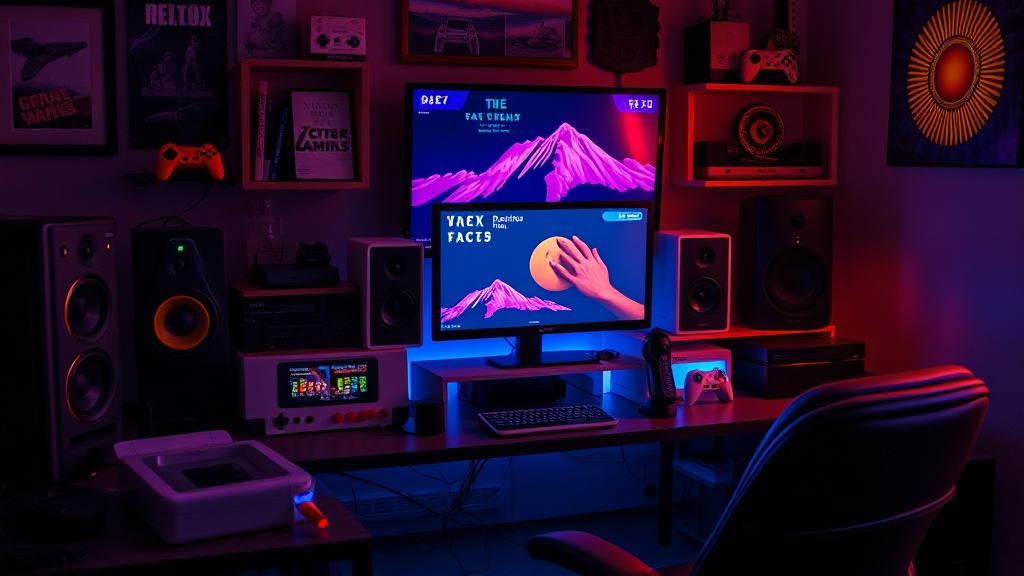
How to Set Up a Dedicated Retro Gaming Station

Are you tired of fighting with latency, screen tearing, and poor input lag every time you try to run an emulator on your high-end gaming PC? Setting up a dedicated retro gaming station is about more than just downloading a ROM; it is about creating a hardware-optimized environment that respects the original intent of the software. This guide covers the technical requirements for building a high-performance emulation rig, focusing on signal chain integrity, input latency reduction, and the hardware necessary to bridge the gap between vintage code and modern displays.
Selecting Your Core Hardware Platform
The first decision in building a retro station is choosing your architecture. You have three primary paths: an x86-based PC, a single-board computer (SBC), or a specialized handheld/micro-console. Each has distinct technical trade-offs regarding overhead and compatibility.
The x86 PC Route
If you want to play high-demand titles like PS2 (PCSX2), GameCube (Dolphin), or Wii U (Cemu), a dedicated small form factor (SFF) PC is your best bet. An Intel NUC or a custom build using an AMD Ryzen 5 processor provides the single-core performance necessary for accurate emulation. The advantage here is the ability to use high-end shaders and upscaling techniques. However, you must ensure your power supply is stable; voltage fluctuations can lead to micro-stuttering in more sensitive emulators.
The Single-Board Computer (SBC) Route
For everything from the 8-bit era up to the Dreamcast, a Raspberry Pi 4 or the newer Raspberry Pi 5 is the industry standard. These devices are efficient and run specialized Linux distributions like RetroPie or Recalbox with minimal overhead. The limitation here is the ARM architecture. While great for 2D and low-poly 3D, you will hit a performance ceiling when trying to run more complex systems. If you are building this for a cabinet or a dedicated media center, the SBC is the most cost-effective solution.
Optimizing the Display Chain
The biggest mistake players make is plugging an emulator directly into a 4K 144Hz gaming monitor and expecting it to look good. Modern LCDs are terrible at displaying retro content because they lack the pixel density of the original CRTs and have high input lag. To fix this, you need to address two specific issues: scanlines and integer scaling.
Achieving Integer Scaling
When you run a 240p game on a 1080p or 4K screen, the pixels do not divide evenly. This results in "shimmering" or uneven pixel sizes. You must enable Integer Scaling in your graphics driver or your emulator's video settings. This ensures that each retro pixel is represented by a perfect square of modern pixels (e.g., a 2x2 or 3x3 block), preventing the visual artifacts that ruin the aesthetic. If you are serious about the visual fidelity of your collection, you should also read my guide on why you should start a physical retro gaming collection to understand the value of original hardware aesthetics.
Implementing CRT Shaders
To replicate the look of a cathode-ray tube, you need more than just a filter; you need a shader that simulates scanlines, phosphor bloom, and aperture grilles. If you are using RetroArch, look for the CRT-Royale or CRT-Guest-Advanced shaders. These are mathematically intensive, so if you are on an SBC, stick to lighter shaders like CRT-Pi. These shaders add a layer of "softness" that hides the jagged edges of low-resolution sprites and makes the image feel much more organic.
Minimizing Input Latency
Input lag is the death of precision in retro gaming, especially for fighting games or high-speed platformers. In a modern gaming setup, you might be used to a few milliseconds of lag, but in a dedicated retro station, every millisecond counts. The goal is to achieve "sub-frame" latency.
- USB Polling Rates: If you are using a USB controller, ensure it has a high polling rate. Some cheap generic controllers poll at 125Hz, which introduces unnecessary delay. Look for controllers that support 1000Hz polling.
- Display Mode: Always use "Game Mode" on your television or monitor. This bypasses the internal image processing of the display, which is a major source of input lag.
- Emulator Settings: In RetroArch, go to Settings > Video > Synchronization and ensure Run-Ahead is enabled. Run-Ahead allows the emulator to predict inputs a few frames in advance, effectively reducing the perceived lag to almost zero. This is a game-changer for titles like Street Fighter II or Mega Man X.
The Audio Stack: Avoiding Digital Clipping
Retro audio was designed for low-fidelity DACs (Digital-to-Analog Converters). When you run that audio through a modern high-end DAC or a 7.1 surround sound system, it can sound harsh, thin, or overly "piercing."
To combat this, you should implement a slight low-pass filter in your audio configuration. This rolls off the extremely high frequencies that can sound "digital" and harsh on modern speakers. If you are using a PC-based station, software like Equalizer APO can be used to create a global profile that softens the output of your emulation software. This creates a much more pleasant, nostalgic listening experience that doesn't cause ear fatigue during long sessions.
Peripheral Integration and Ergonomics
A dedicated station is only as good as its interface. If you are building a station for arcade classics, you cannot use a standard Xbox controller. You need a way to interface with specialized hardware.
Arcade Sticks and Fight Pads
For arcade-style games, invest in a stick with high-quality microswitches. Brands like Sanwa or Brook are the gold standard. If you are building a custom cabinet, ensure your encoder is compatible with your platform. For example, a USB encoder works for PC/Raspberry Pi, but if you want to plug into an original console, you'll need a specialized interface. If you are interested in the tactile side of gaming, you might enjoy my breakdown on how to build a custom mechanical keyboard, as the principles of switch actuation and polling rates are very similar.
The Controller Hierarchy
For a well-rounded station, I recommend having three tiers of input:
- The Standard: An 8BitDo controller. These are highly compatible with many systems and have excellent build quality for the price.
- The Specialist: A Sanwa-based arcade stick for fighting games and shmup titles.
- The Purist: An original hardware controller (like a SNES or Genesis pad) connected via a high-quality USB adapter to ensure the exact feel of the original era.
Final Checklist for Optimization
Before you consider your build "complete," run through this technical checklist to ensure you haven't missed a bottleneck:
- Check Frame Timing: Use a tool like RTSS (RivaTuner Statistics Server) to ensure your frame pacing is consistent. Stuttering is often caused by a mismatch between the emulator's refresh rate and the monitor's refresh rate.
- Verify Audio Latency: Listen for any "crackling" which indicates your CPU is struggling to keep up with the audio buffer. Increase the buffer size if necessary.
- Test Input Lag: Use an online input lag tester to see exactly how many frames of delay exist between your button press and the screen update.
- Heat Management: If using an SBC or a small PC, ensure it has adequate ventilation. Heat throttling is a silent killer of frame rates in long gaming sessions.
A dedicated retro station shouldn't be a compromise. By focusing on the technical nuances of scaling, latency, and audio processing, you move away from a "cheap emulation" experience and toward a high-fidelity tribute to gaming history. Don't settle for the marketing hype of "plug and play"—build a system that actually performs.
Steps
- 1
Choose Your Central Hub
- 2
Source a CRT Television
- 3
Organize Your Physical Media
- 4
Manage Your Cables and Power
- 5
Optimize Your Input Lag