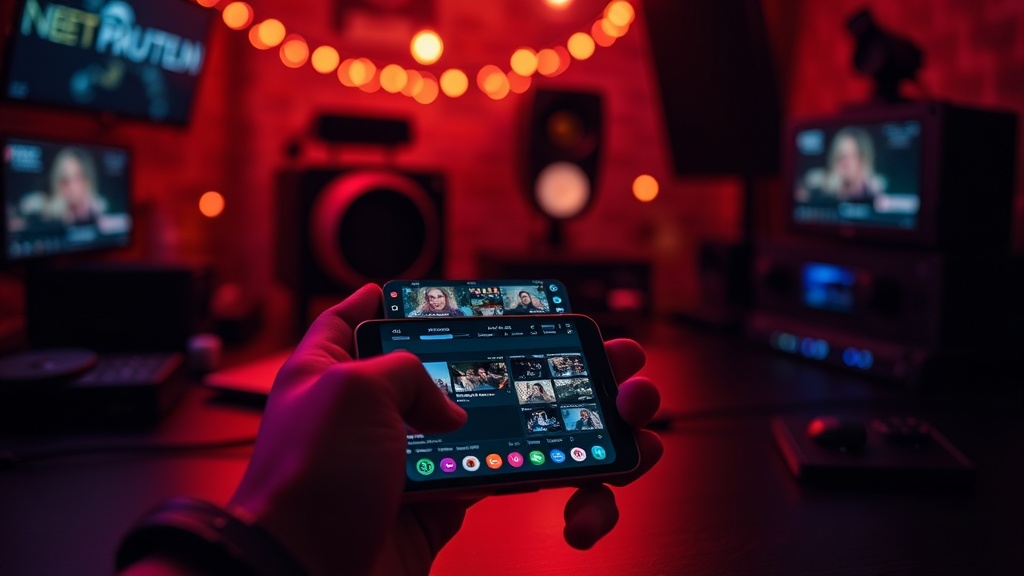
Set Up a Dedicated Stream Deck Alternative Using Your Smartphone

A cluttered desk is a silent killer of productivity. You’ve got your mechanical keyboard, a high-polling rate mouse, and a massive monitor, but then there’s the clutter—the stray phone, the tablet, or the old iPhone gathering dust in a drawer. This guide shows you how to turn that dead hardware into a functional, low-latency control surface for your stream or your gaming macros. We’re bypassing the expensive proprietary hardware and using software to turn your mobile device into a customized command center.
Most people think you need to drop $150 on a specialized piece of hardware to get tactile control over your OBS settings or Discord toggles. That’s nonsense. If you have an old Android device or an iPhone sitting in a junk drawer, you have a high-resolution, backlit macro pad ready to go. We’re going to look at the software requirements, the latency reality, and the best ways to mount this thing so it doesn't slide around your desk.
What is the Best Free Stream Deck Alternative?
Macro Deck and Touch Portal are the top contenders for anyone looking to replace expensive hardware without spending a dime. While there are plenty of apps floating around, these two provide the most stability when interfacing with desktop applications. If you want something that feels like a professional tool rather than a hobbyist toy, you need to look at the way these apps handle the connection between your phone and your PC.
Macro Deck is an open-source powerhouse. It’s great because it doesn't hide its functionality behind a subscription wall. On the flip side, Touch Portal offers a more polished user interface that feels a bit more intuitive for beginners. You aren't just clicking buttons; you're triggering complex macros, adjusting volume levels, or even switching scenes in OBS.
Here is a quick breakdown of the primary options you'll encounter:
| Software Option | Primary Strength | Best For | Connection Method |
|---|---|---|---|
| Macro Deck | Open Source / Free | Budget-conscious power users | Wi-Fi / USB |
| Touch Portal | User Interface / Ease of Use | Streamers wanting a polished feel | Wi-Fi |
| Deckboard | Simplicity | Basic macro execution | Wi-Fi / USB |
I’ve spent enough time troubleshooting faulty input devices in my repair shop to know that stability is everything. If your control surface lags by even half a second, it’s useless for high-intensity gaming or live broadcasting. You want a tool that reacts instantly when you hit that "Mute" button.
How Do I Connect My Phone to My PC for Macro Control?
You connect your phone to your PC via a local network connection (Wi-Fi) or a direct USB tethering setup to minimize input lag. While Wi-Fi is the easiest way to get started, it is prone to interference. If your router is busy or your network is congested, you might see a delay between pressing a button on your phone and the action happening on your PC.
If you want the most stable connection possible, use a USB cable. Most of these applications allow you to use your phone as a USB tethering device. This creates a direct-wired link that bypasses the unpredictability of wireless signals. It’s a bit more cumbersome because of the cord, but for a dedicated setup, it's the professional way to do it.
To get this running, follow these steps:
- Install the Desktop Client: Download the server software (like Macro Deck or Touch Portal) on your Windows or Mac machine.
- Install the Mobile App: Find the corresponding app on the Google Play Store or the Apple App Store.
- Connect to the Same Network: Ensure both devices are on the same SSID. If using USB, enable USB Tethering in your phone's developer settings.
- Map Your Keys: Start by mapping simple keyboard shortcuts (like a single key press) to ensure the connection is working before you try complex macros.
One thing to watch out for: battery drain. Running a screen at high brightness with a constant network connection will eat through your phone's battery. Keep it plugged into a power source. I've seen too many "DIY" setups fail because the user forgot that a screen running 24/7 isn't exactly energy-efficient.
Managing Latency and Performance
Latency is the enemy of a good setup. When I'm testing hardware, I look for the delta between the command and the execution. If you're using a wireless connection, your phone is essentially sending a packet over your Wi-Fi. If your PC is also pulling heavy assets from a cloud drive or streaming a 4K game, that packet might get delayed.
If you find your buttons are "sticky" or delayed, check your network settings. A dedicated 5GHz band for your gaming peripherals can help, but honestly, a USB cable is the only way to be certain. If you're already worried about your PC's performance, you might want to check out my guide on how to actually optimize your PC games for stable FPS. A bogged-down CPU can cause the desktop client to lag, which makes your "Stream Deck" feel unresponsive.
How Much Does a Smartphone Stream Deck Alternative Cost?
The total cost for a smartphone-based control surface is usually $0, assuming you already own a spare mobile device. If you are buying the software, most of these tools operate on a "freemium" model. You can get a basic version for free, but advanced features—like more buttons or more complex macros—usually require a one-time purchase or a small monthly sub.
Compare that to the $150+ price tag of a dedicated hardware deck. You're saving a massive amount of capital that can be better spent on actual hardware upgrades, like a better GPU or a more reliable SSD.
A few things to consider before you commit:
- The "Old Phone" Factor: If the phone is too old, the mobile app might not run smoothly. A phone with 2GB of RAM is the absolute bare minimum for a decent experience.
- Screen Burn-in: If you leave a static image on an OLED screen for hours, you're going to see it. Use a "black screen" or a very dim interface if you aren't actively using the device.
- Mounting Solutions: You'll need a way to hold the phone. A cheap tripod or a small desk clamp works wonders.
I've seen people try to prop their phones up against a stack of books. It's a recipe for a broken screen or a device falling into their keyboard. Get a dedicated stand. It makes the whole setup feel like an actual piece of gear rather than a temporary fix. It’s about the ergonomics of the desk space.
If you're looking to improve your overall setup, don't forget that your audio is just as important as your controls. A high-quality control surface won't matter if your listeners are hearing a tinny, low-quality signal. I previously wrote about how to build a better soundstage for your gaming sessions, which is a great next step once you've got your macros dialed in.
The goal here isn't to mimic a professional studio perfectly. The goal is to give you utility without the unnecessary overhead. Whether you're switching scenes in OBS, toggling your mic, or launching a specific game macro, your phone is more than capable. Just don't expect it to replace a high-end mechanical interface entirely—it's a tool, not a miracle worker.
Steps
- 1
Choose Your Control Software
- 2
Install the Client on Your Mobile Device
- 3
Configure Your Desktop Connection
- 4
Map Your Custom Macro Buttons